How to Manage Your Reporting
Modified on: 2025-10-24 12:58
TABLE OF CONTENTS
Introduction
- The Report Builder allows you to analyze and present your performance data in a more detailed way.
- You can create custom tables and charts directly in the Report section, without having to download your data in a separate sheet. These reports can be saved, and scheduled to be mailed to any email address.
- This user guide explains how to use the Report Builder to better visualize your performance.
Benefits
- Easy tables: A simple drag-and-drop interface lets you quickly build multi-dimensional tables, reducing the need to download your data.
- Visualize patterns and trends: Custom reports let you visualize the patterns and trends in your data.
- Advanced filtering and sorting: Filter, segment, and sort your report to see a specific set of strategies or metrics.
Usage Flow
1. Create a Report
Start by creating a custom report in your account.
You’ll then build your report by adding dimensions, such as activity name and hotel, as well as metrics, like clicks and revenue.
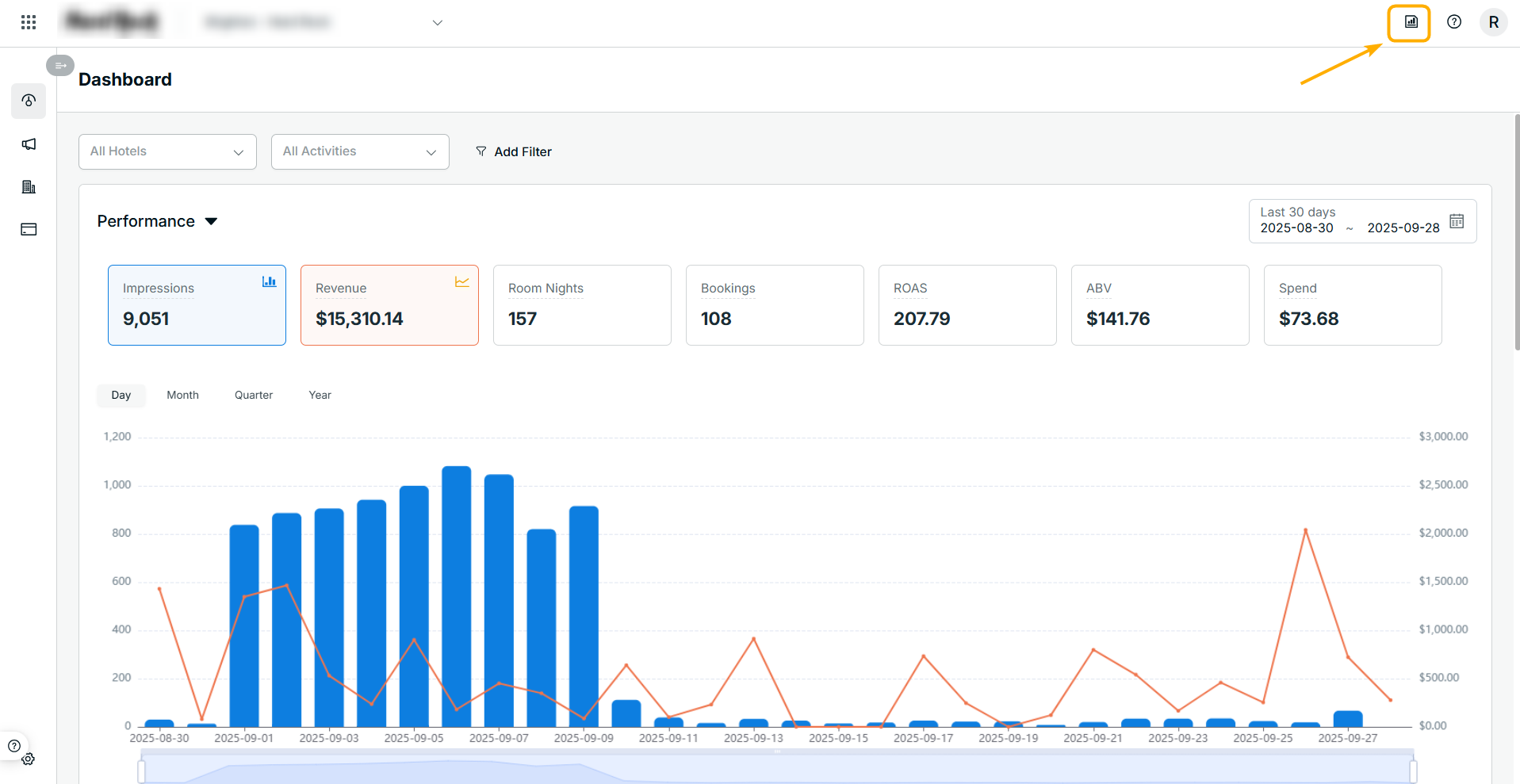
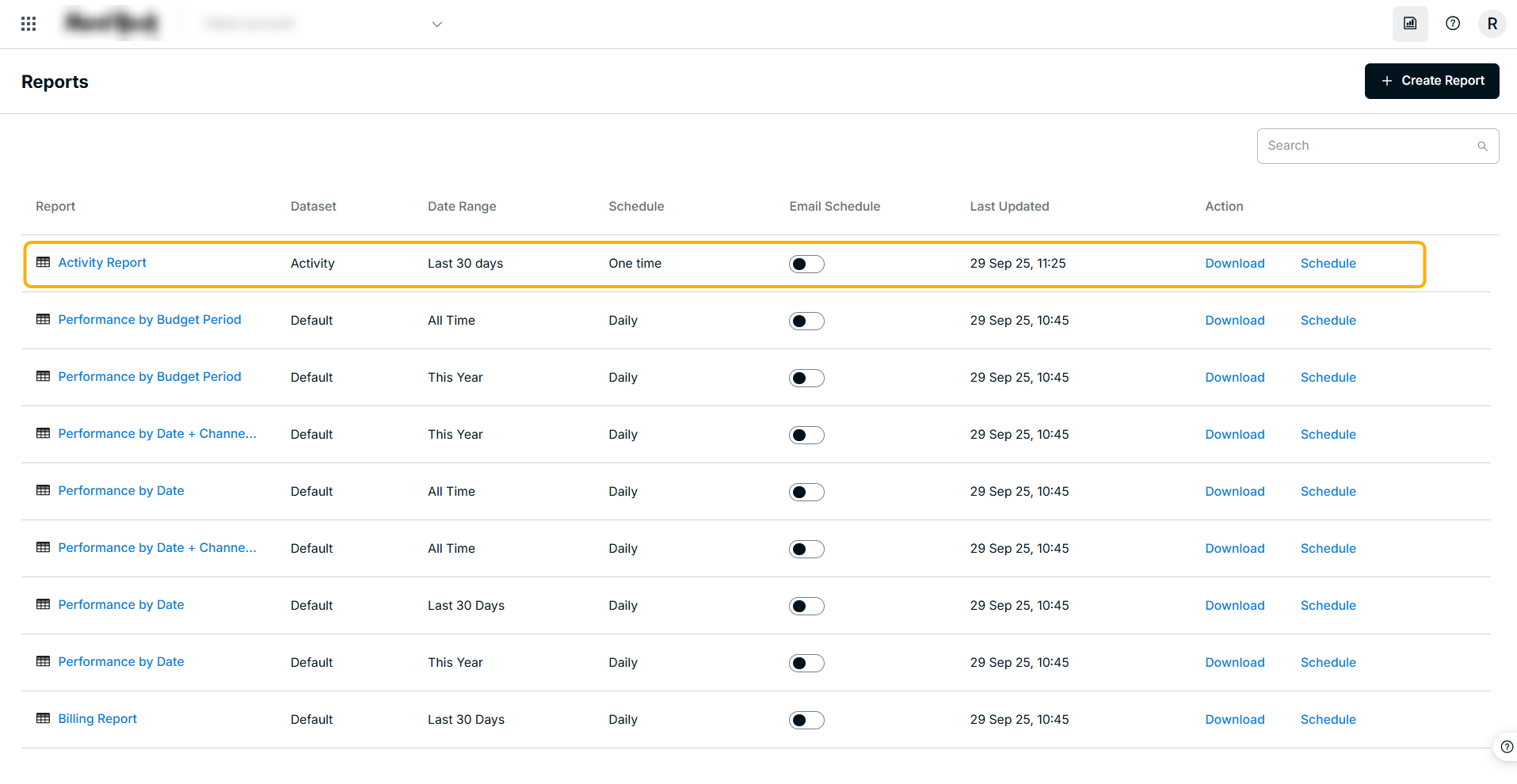
- Click on the report icon on the top right of the platform.
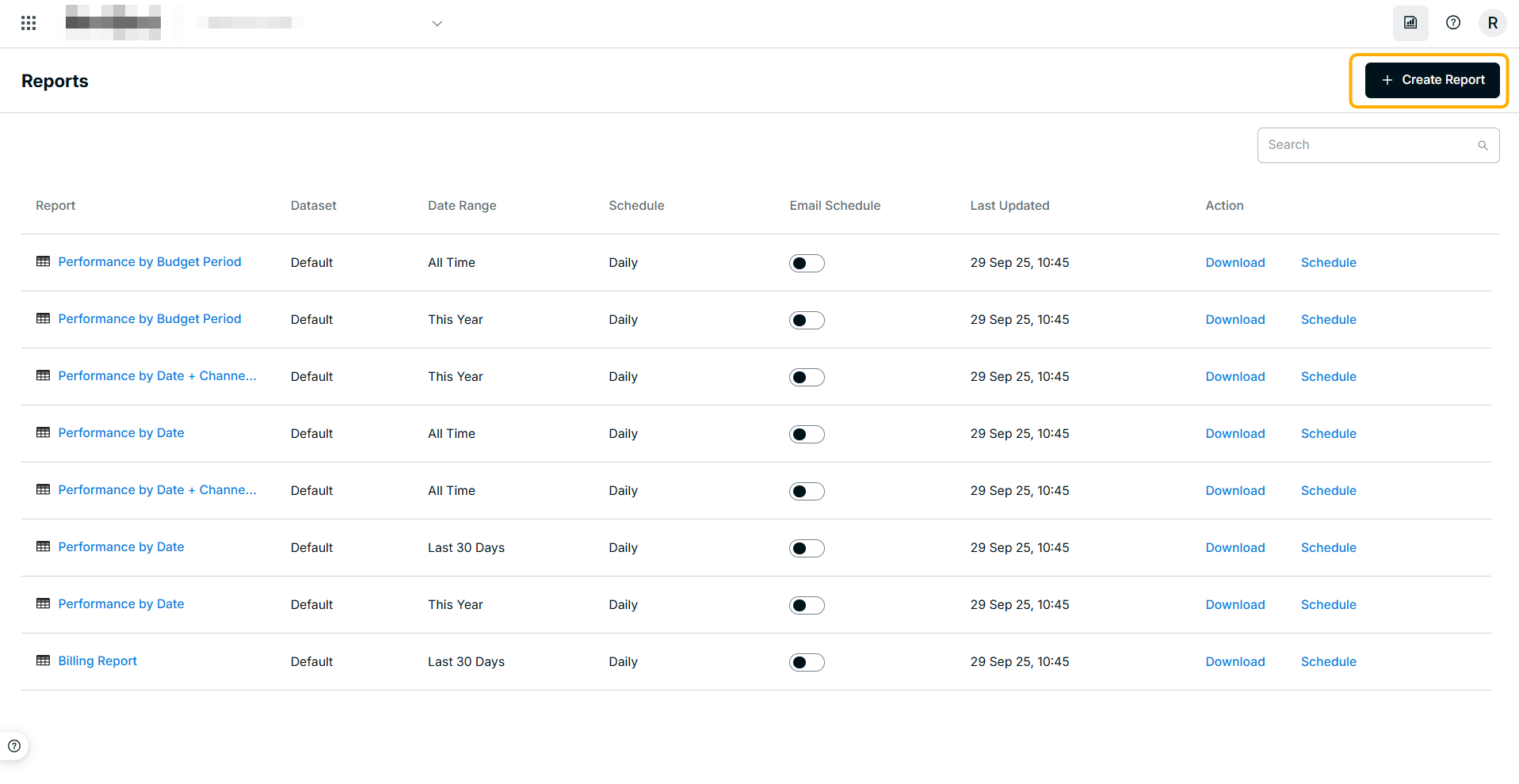
- Click on the "+ Create Report" button in the top right.
- Drag and drop a dimension, such as "Activity Name" from the right-side panel into the "Rows" section.
- Drag and drop metrics, such as "Clicks" and "Spend(USD)" into the "Columns" section.
- Click the "Run" button on the down left to generate the data.
- Your table will now show you values for each dimension based on the metrics you added, for example, the number of clicks and spend for each activity.
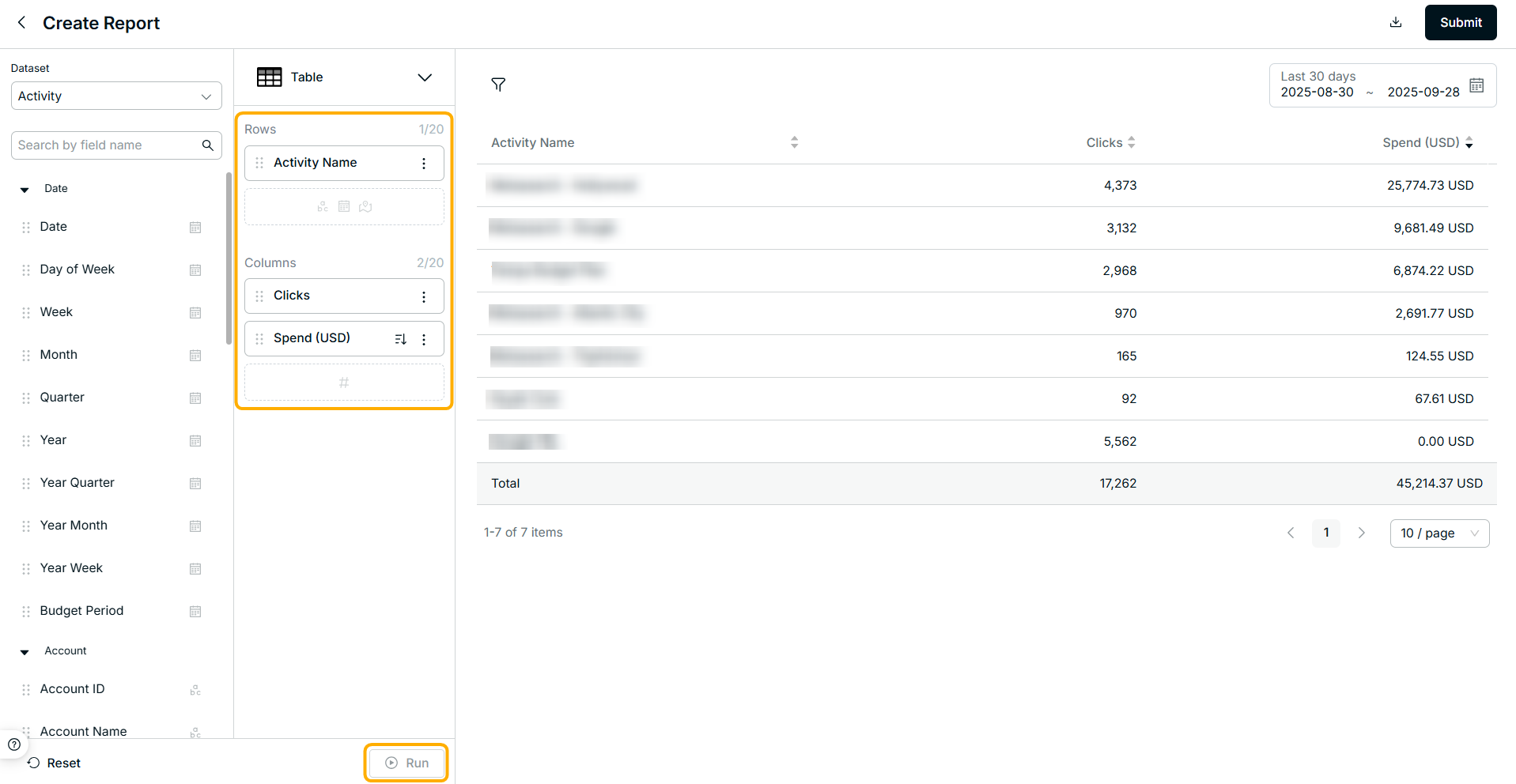
- Click "Reset" to clear the dimensions or columns you set before, and you can set the fields again and click "Run" to generate another report data.
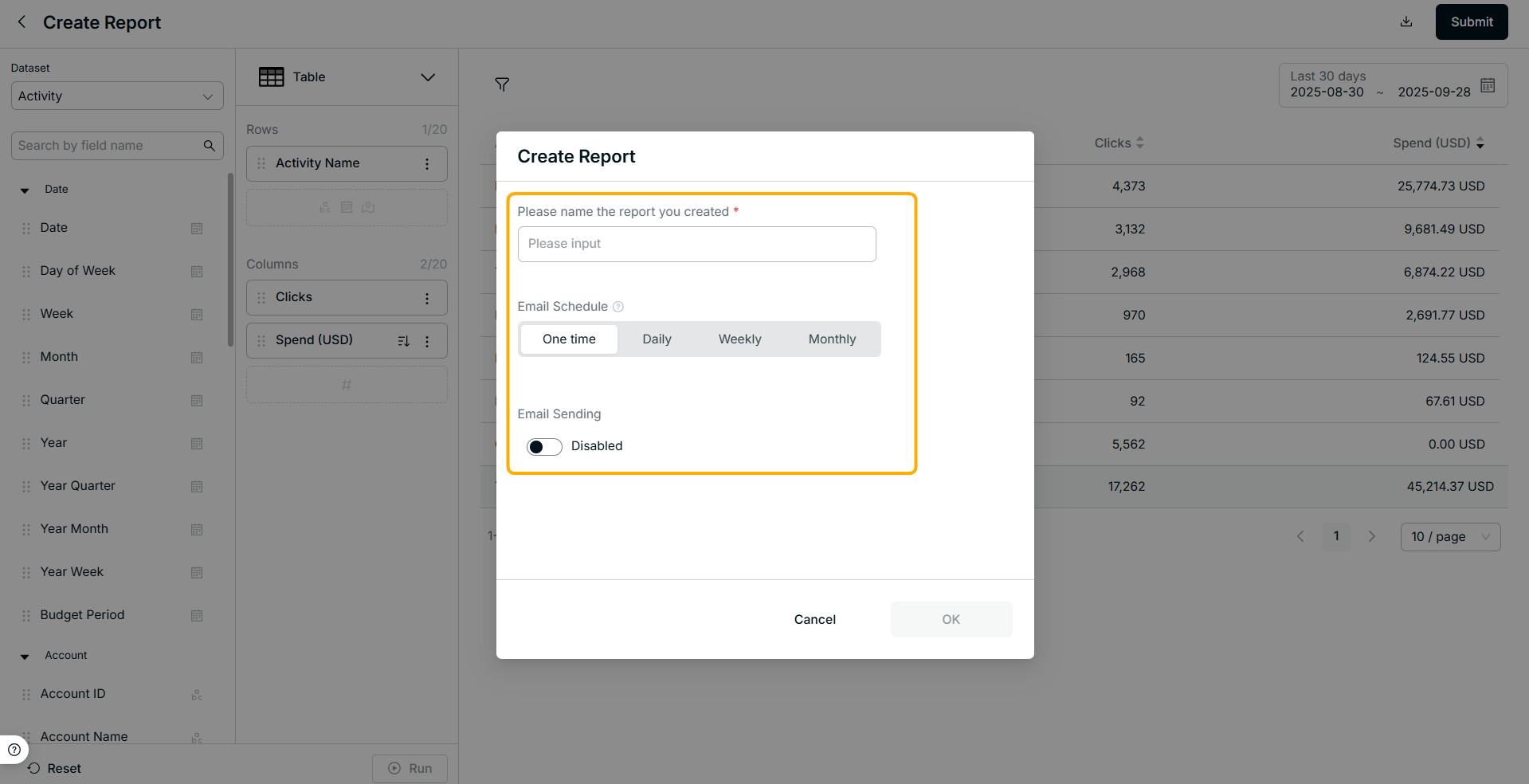
- To save your report, click "Submit", and input the report name, set the email schedule, and click "OK".
- After the creation, you can view the report in the Report list. You are able to download and re-schedule the report, also delete the report by hovering over the report.
2. Edit your report
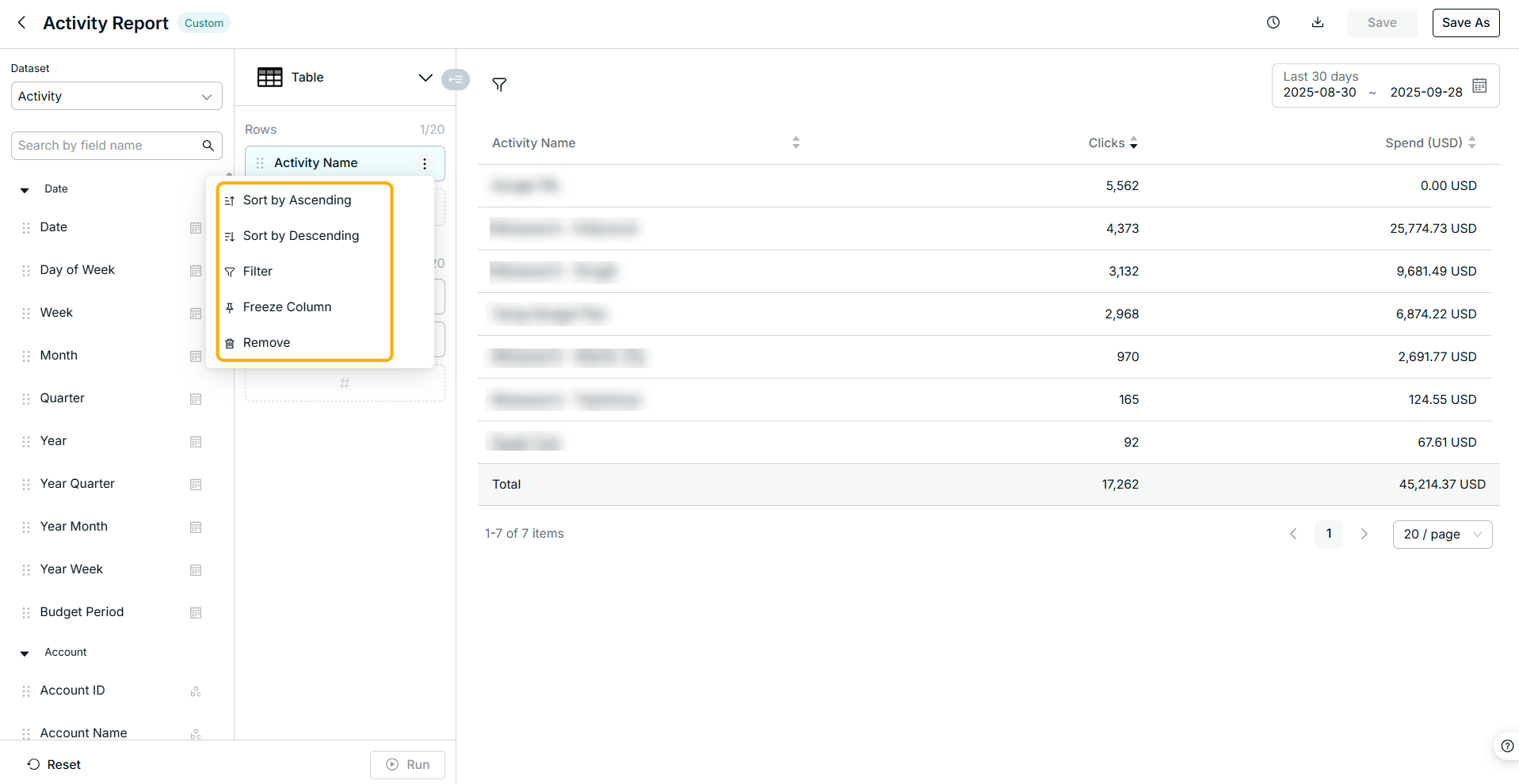
You can filter, format, and sort your data, or remove the fields you don’t need.
- Filter: See data that meets specific criteria in your table.
- Sort: Reorganize the data in your table.
- Freeze Column: Freeze the column that you want to always be displayed.
- Remove: Remove the column if you don’t need it.
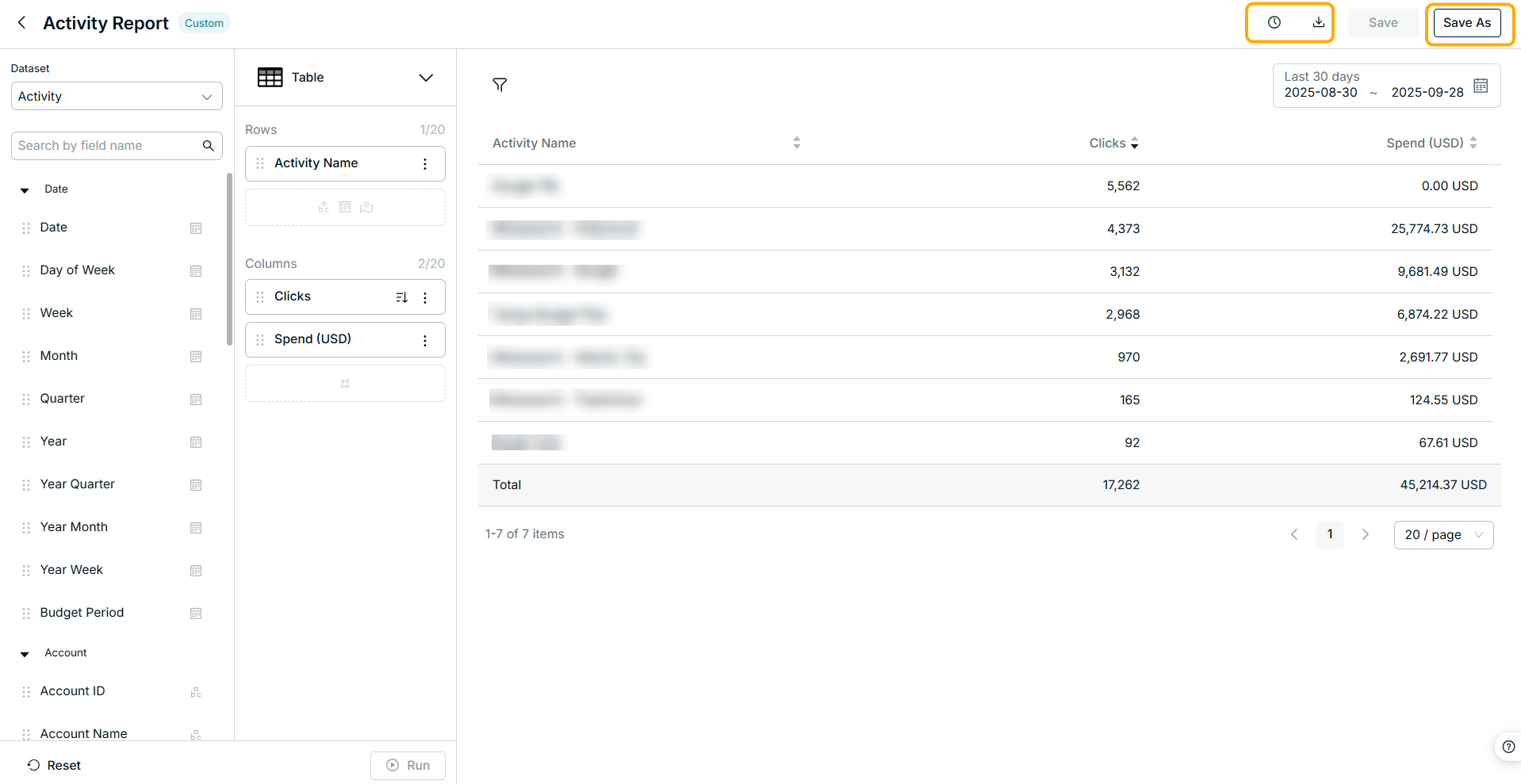
You can also reschedule, rename, and download your report.
- Schedule: Reschedule for the email sending.
- Download: Download your report and view it in CSV format.
- Save as: Save as lets you create a copy of your report with a new name.
3. Report Compare
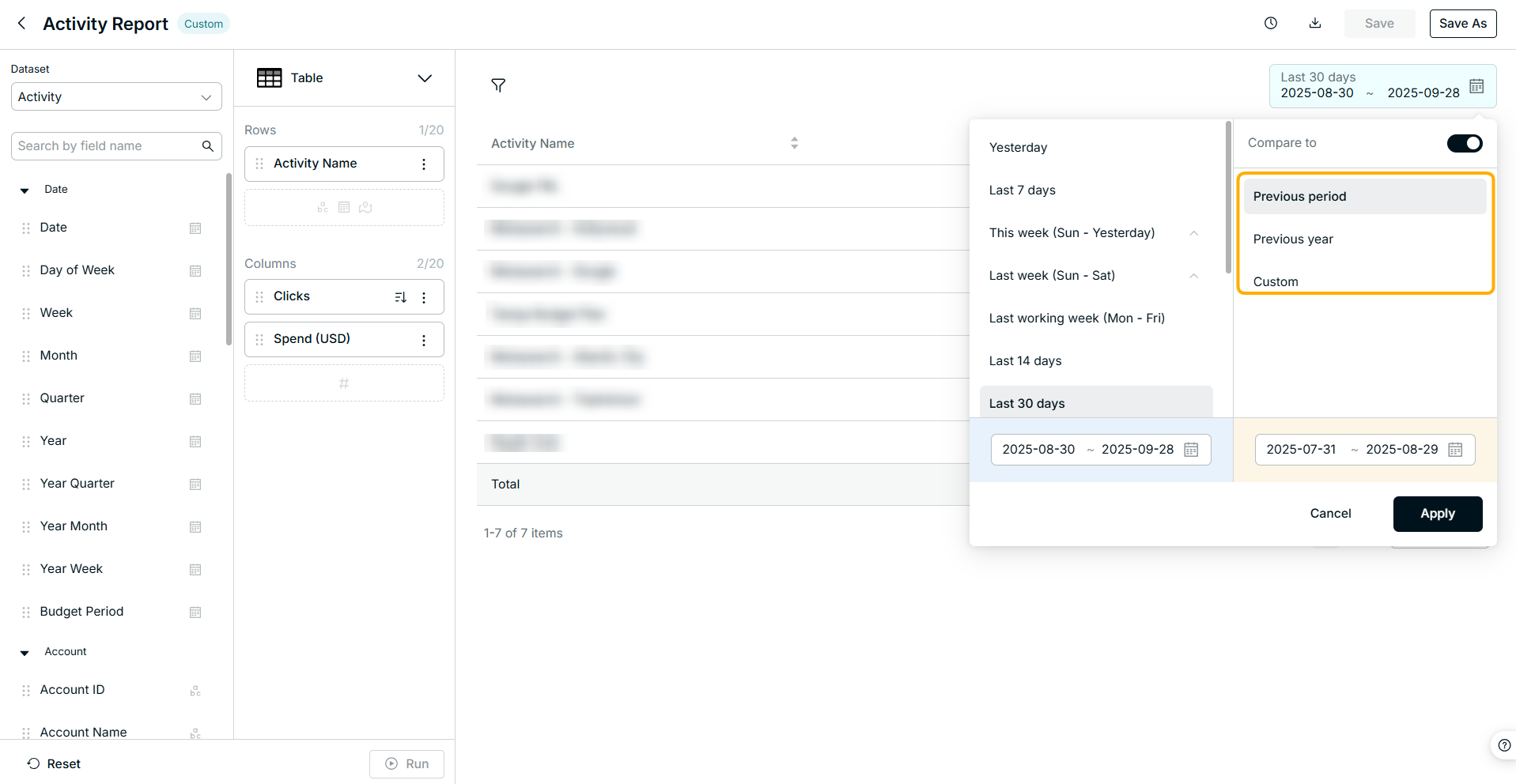
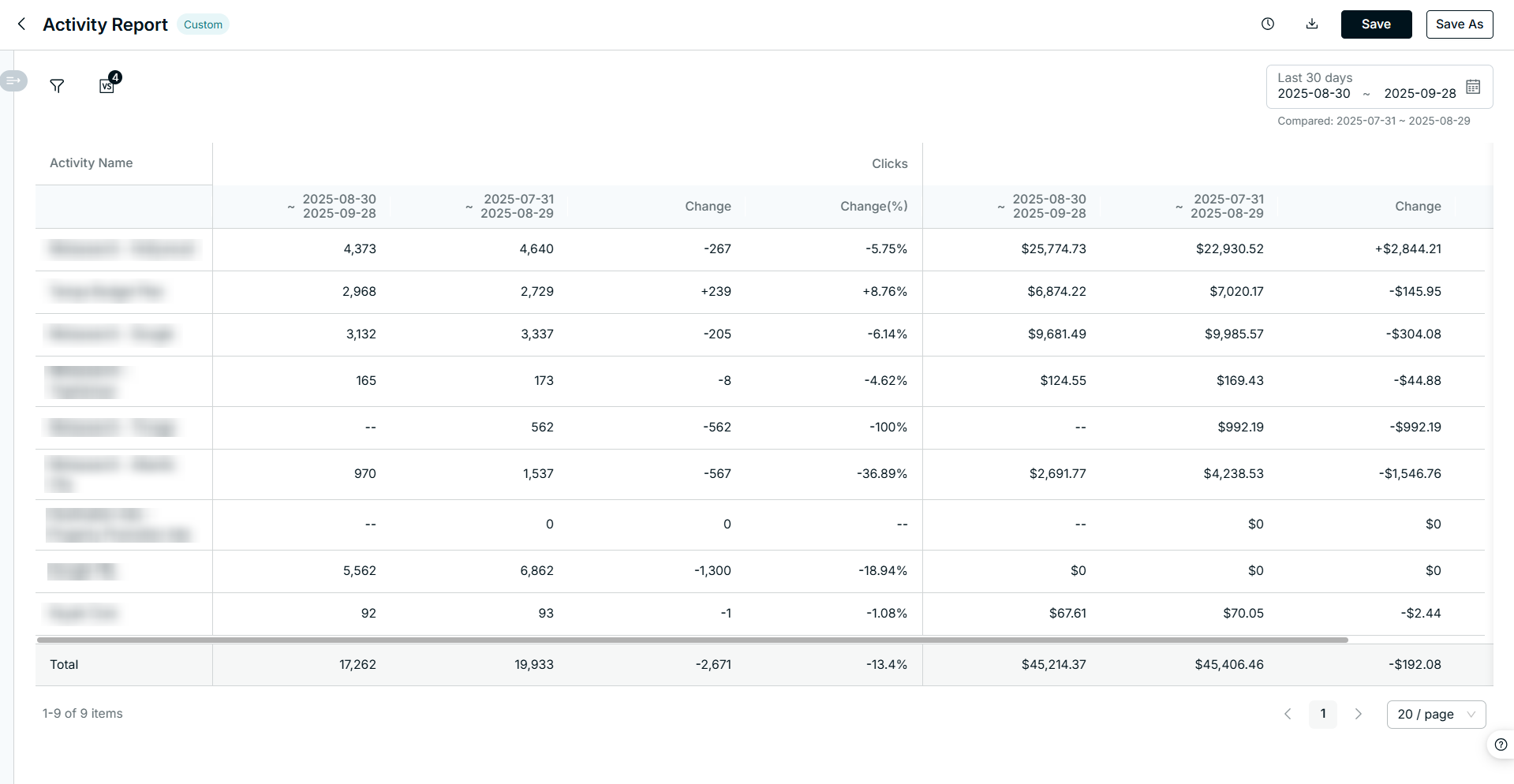
You can enable the report to compare by toggle on the "Compare to" button in the calendar.
- Supportable compare type by
- Previous period;
- Previous year;
- Custom, you can customize the compare period.
4. Chart Switch
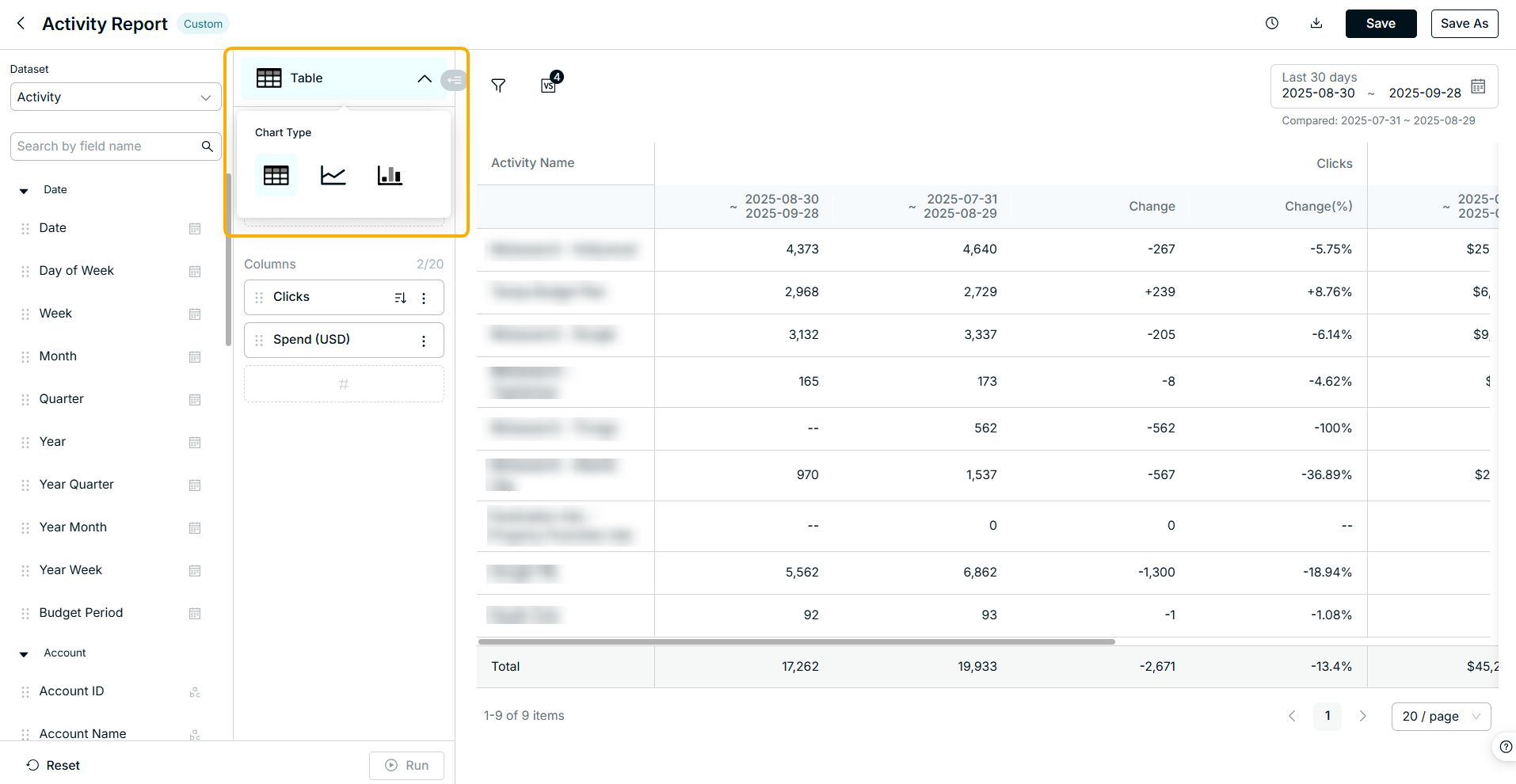
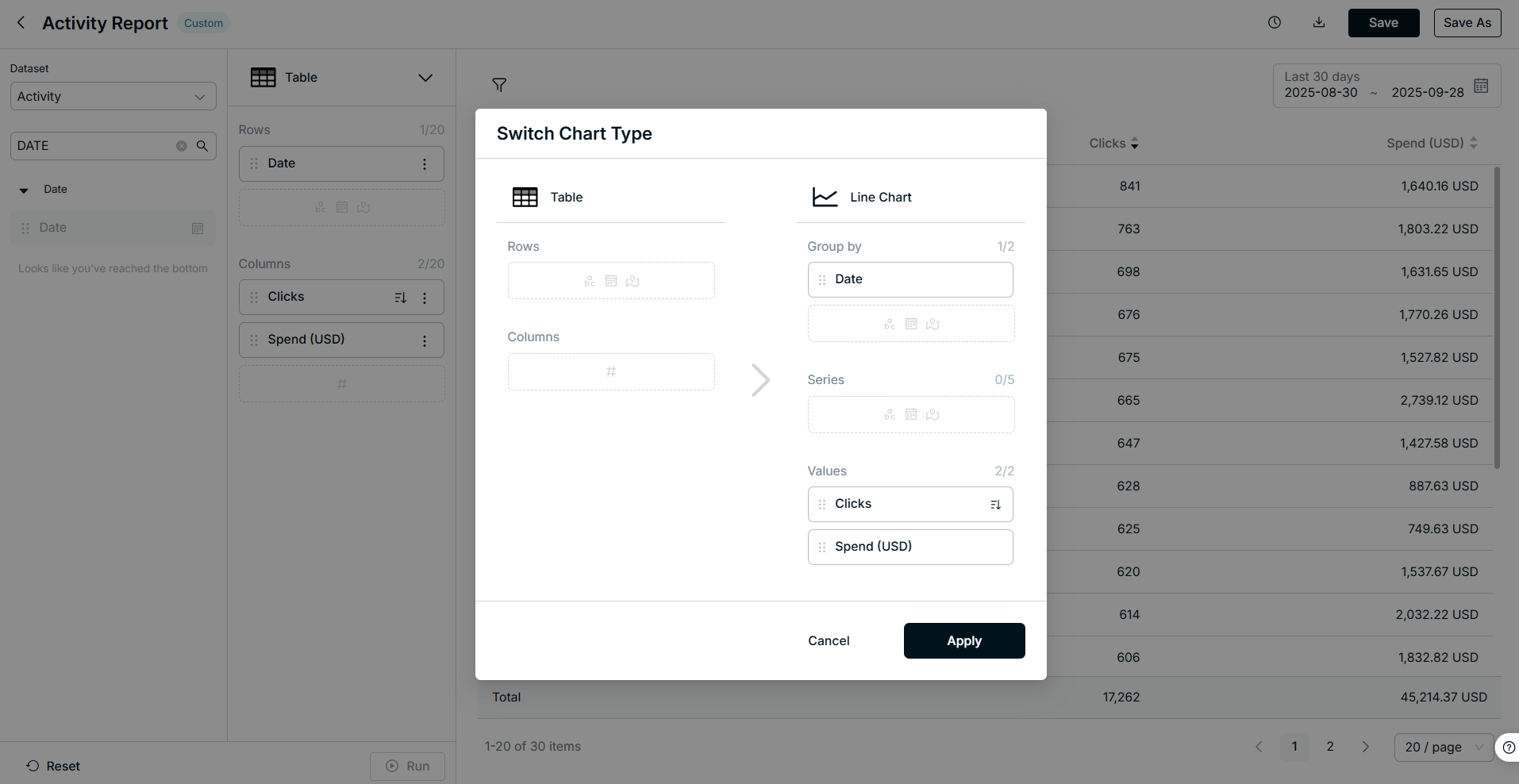
Table, Line and bar charts are available now, you can switch among each other by
- Dropping down the table icon.
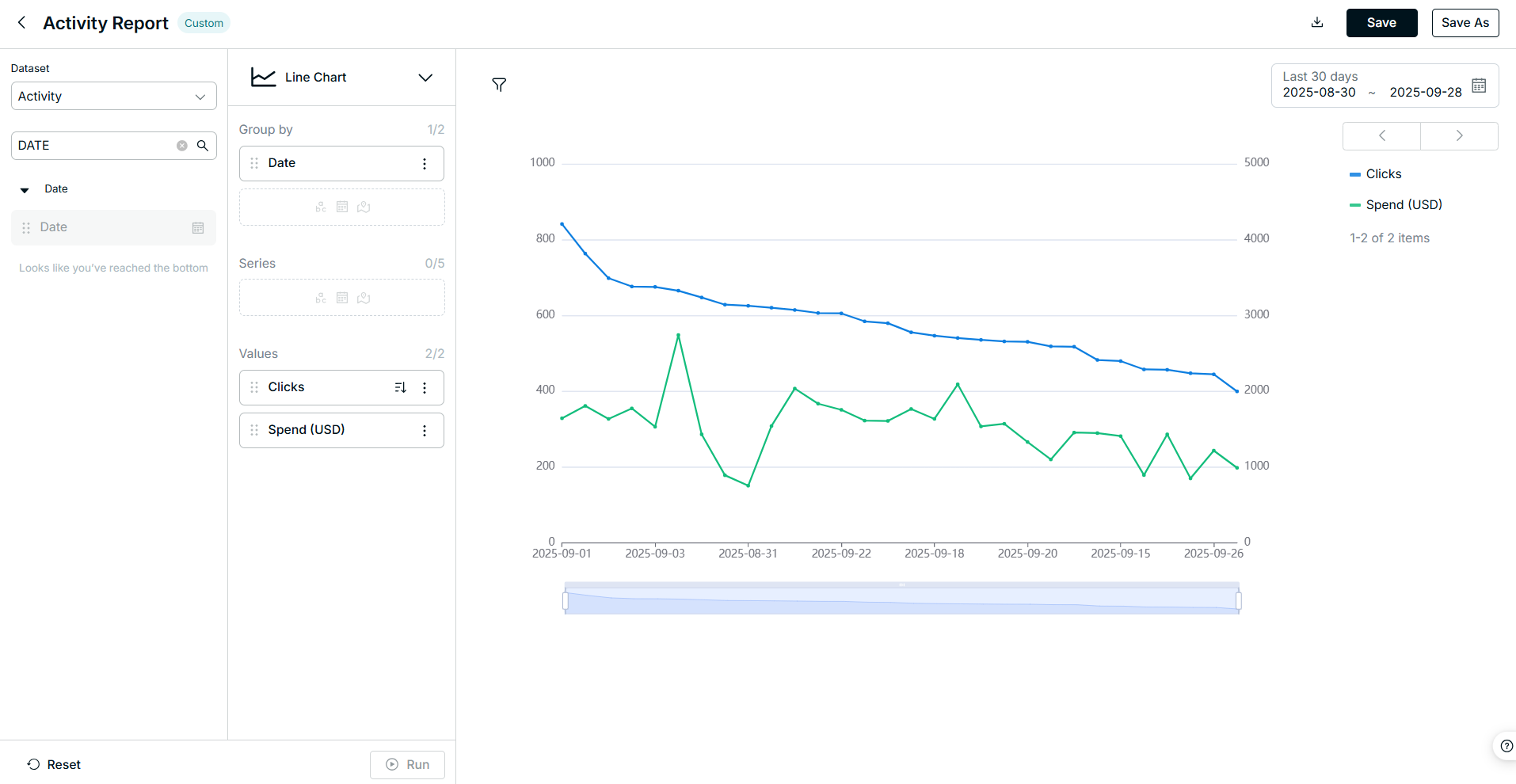
Tips: More chart types will be coming soon.
Did you find it helpful? Yes No
Send feedbackSorry we couldn't be helpful. Help us improve this article with your feedback.